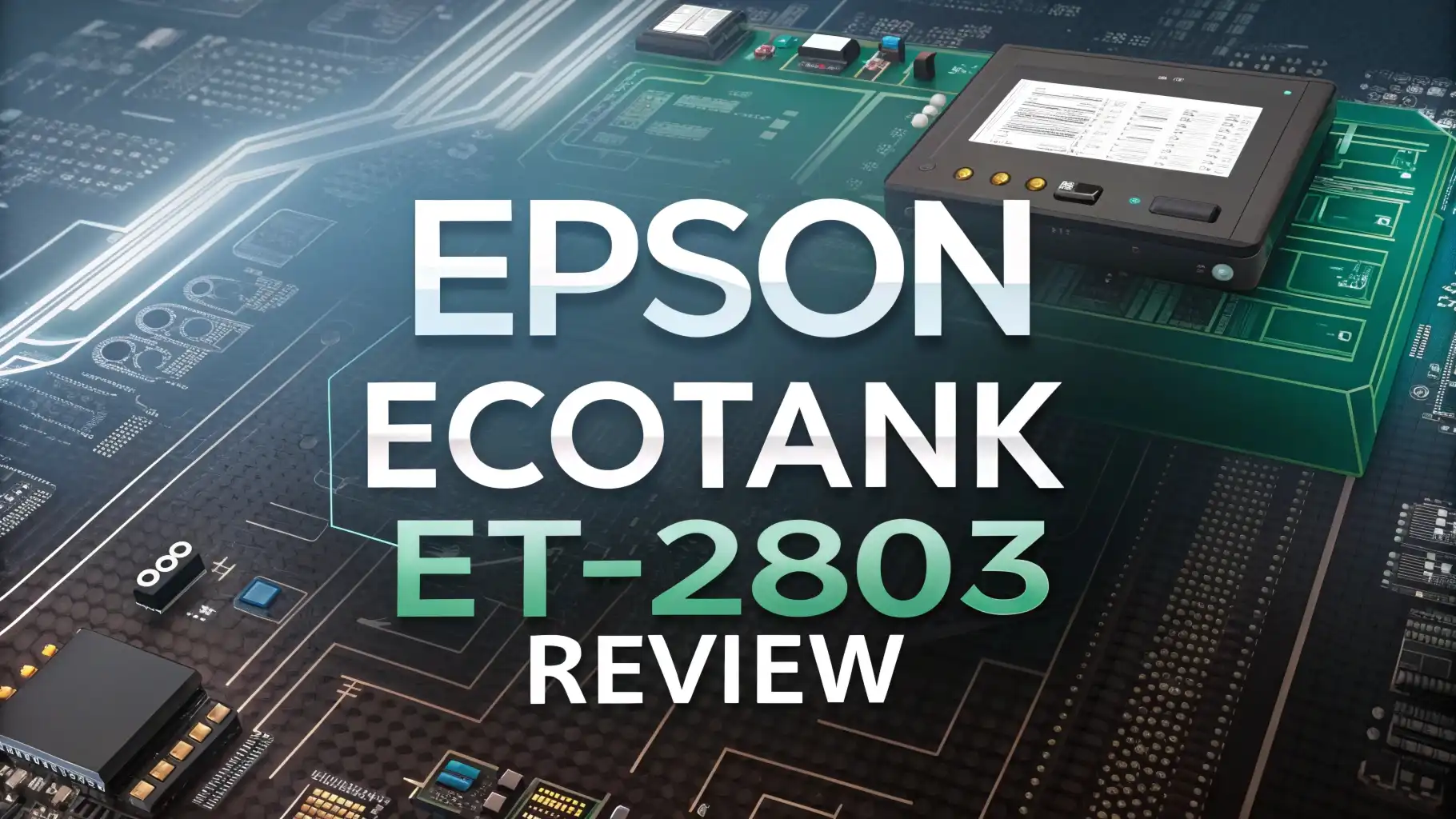
Are you tired of spending a fortune on ink cartridges every few months? The Epson EcoTank ET-2803 might be the solution you’ve been searching for.
This innovative printer promises to change how you think about home printing by eliminating expensive cartridges entirely.
In this comprehensive review, we’ll explore every aspect of the Epson EcoTank ET-2803 to help you decide if it’s the right printer for your home or small office.
Key Takeaways
- Massive Ink Supply: The printer includes up to 2 years of ink in the box, which saves you hundreds of dollars compared to traditional cartridge-based printers. You won’t need to buy replacement ink for a very long time.
- Affordable Price Point: Despite its innovative tank system, the ET-2803 costs less than many cartridge printers. The initial investment pays for itself quickly through ink savings alone.
- Simple All-in-One Functions: This printer can print, scan, and copy documents with ease. You get three essential functions in one compact machine that fits on any desk.
- Easy Wireless Connectivity: Connect your smartphone, tablet, or computer without cables. The ET-2803 supports WiFi printing from anywhere in your home, plus mobile printing through the Epson app.
- Reliable Performance: Print speeds reach 10 pages per minute for black documents and 5 pages per minute for color. Quality remains consistent even after thousands of prints.
- Perfect for Families and Students: If you print homework, school projects, or family photos regularly, this printer offers unbeatable value without the constant worry of running out of ink.
What Makes the Epson EcoTank ET-2803 Special

The Epson EcoTank ET-2803 stands out because it completely changes the printer business model. Traditional printers are cheap, but ink cartridges cost a fortune. Epson flipped this approach by including massive amounts of ink upfront.
The visible ink tanks sit on the front of the printer where you can easily monitor ink levels. You’ll never experience that frustrating moment when your printer runs out of ink halfway through an important document. The transparent tanks let you see exactly how much ink remains at any time.
This printer delivers exceptional value for families, students, and home offices. You can print thousands of pages before needing to refill the tanks. When refill time finally arrives, replacement ink bottles cost only about $13 per color. That’s dramatically cheaper than buying new cartridges every month.
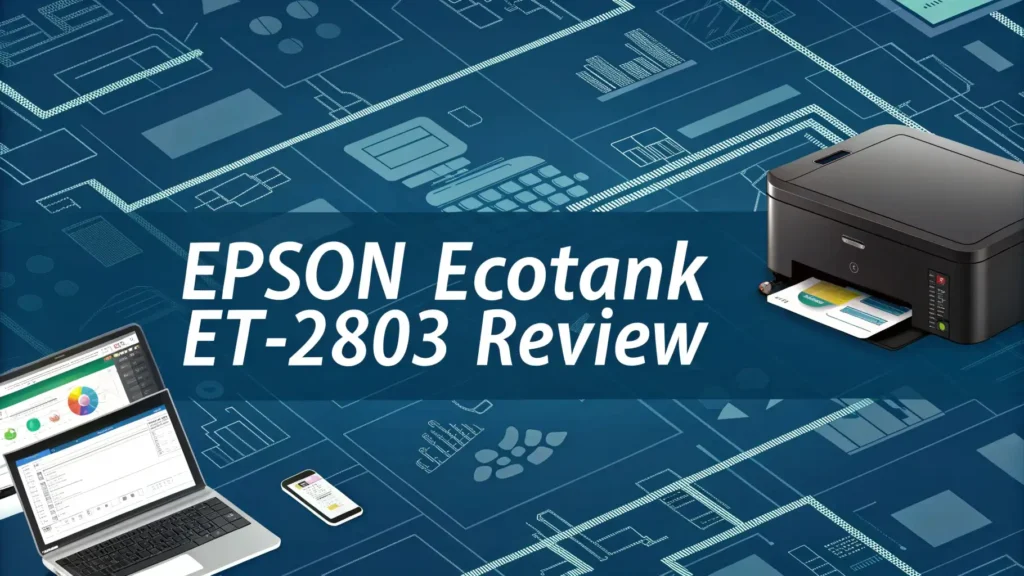
The ET-2803 also features automatic two-sided printing, which saves paper and money. The compact design takes up minimal desk space, measuring just 14.8 x 13.7 x 9.1 inches. Despite its small footprint, it includes a 100-sheet paper tray that holds plenty of paper for everyday printing tasks.
Design and Build Quality of the ET-2803
The Epson ET-2803 features a clean, modern design with a matte black finish. The printer looks professional enough for an office yet compact enough for a home desk. Build quality feels solid without any cheap plastic creaking or flexing.
The most distinctive design element is the ink tank system positioned on the right side. These transparent tanks showcase Epson’s confidence in their technology. You can watch the ink levels drop very slowly as you print hundreds of pages.
The control panel includes basic buttons for power, stop, and function selection. A small LCD screen displays printer status and simple messages. The interface is straightforward and easy to understand, even for people who aren’t tech-savvy.
Opening the scanner lid reveals a flatbed glass surface that accommodates documents up to letter size. The hinge extends to allow scanning of thicker books or magazines. The output tray extends automatically when you start printing, which is a nice touch that prevents forgotten pages from falling on the floor.
Overall weight is moderate at about 8.8 pounds, making it easy to move if needed. The power cable and USB port are located on the back, keeping cables out of sight for a cleaner appearance.
Top 3 Alternatives for Epson EcoTank ET-2803

- Epson's Claria ET Premium 6-color ink breathes life into your cherished memories with vivid...
- Ditch cartridges and embrace revolutionary ink savings

- Innovative Cartridge-Free Printing ― High-capacity ink tanks mean no more tiny, expensive ink...
- Impressive Print Quality ― Unique Micro Piezo Heat-Free Technology produces sharp text –...

- Sold as 1 Each.
- All-in-one printer gives you printing, copying, and scanning capability
Printing Performance and Quality
The ET-2803 produces sharp, clear text documents that look professional. Black text prints with crisp edges suitable for business correspondence, school papers, and presentations. Font sizes down to 8 points remain perfectly readable without any blurriness or feathering.
Color documents look vibrant and accurate. The four-color ink system (black, cyan, magenta, yellow) creates a wide color range for charts, graphs, and simple graphics. Colors appear true to what you see on screen, though professional designers might notice slight differences.
Photo printing quality is surprisingly good for a budget printer. Family photos printed on regular paper look decent, while photos on glossy photo paper appear quite impressive. Don’t expect gallery-quality prints, but vacation photos and school projects will turn out beautifully. Colors remain accurate, and skin tones look natural.
Print speeds match Epson’s specifications in real-world use. Black documents print at about 10 pages per minute, while color documents average 5 pages per minute. These speeds are perfectly adequate for home use, though offices printing hundreds of pages daily might want something faster.
The printer handles various paper types well, including cardstock up to 90 lb weight. Envelopes feed smoothly without jamming, which isn’t always true for budget printers.
Scanning and Copying Capabilities
The flatbed scanner produces clear, detailed scans suitable for most home and office needs. The scanner resolution reaches 1200 x 2400 dpi, which captures fine details in photos and small text in documents. Scanned images appear sharp on screen and print well when needed.
Scanning speeds are reasonable but not lightning-fast. A full-color page takes about 15-20 seconds, while black and white documents scan slightly faster. You can scan directly to your computer, email, or cloud services through the Epson Smart Panel app.
The copy function works independently without a computer connection. Simple copies come out clear and accurate. You can adjust copy settings like darkness and number of copies using the control panel buttons. The copy quality matches the original document closely, making it perfect for homework, forms, and simple documents.
One limitation is the lack of an automatic document feeder. You must manually place each page on the glass to scan or copy multiple pages. This becomes tedious for large documents, but it keeps the printer affordable and compact.
Color copies maintain good color accuracy, though there’s slight fading compared to the original. This is normal for budget copiers and won’t be noticeable for most everyday copying tasks.
Wireless Setup and Mobile Printing
Setting up wireless printing is straightforward with the Epson Smart Panel app. Download the free app to your smartphone or tablet, then follow the simple instructions. The app guides you through connecting the printer to your WiFi network in just a few minutes.
Once connected, you can print from anywhere in your home without cables. Send documents from your phone while sitting on the couch or print photos from your tablet in another room. The WiFi connection remains stable and reliable in normal home environments.
The Epson Smart Panel app offers convenient features beyond basic printing. You can check ink levels remotely, adjust printer settings, and access troubleshooting guides. The interface is clean and intuitive, making printer management actually pleasant.
Mobile printing supports multiple methods including WiFi Direct, which lets you print even without a WiFi network. Just connect your phone directly to the printer for quick printing anywhere. The printer also supports Apple AirPrint and Google Cloud Print for seamless printing from iOS and Android devices.
Email printing allows you to send documents to your printer’s unique email address from anywhere in the world. This feature proves useful when you need to print something before arriving home. Setup takes only a few minutes through the Epson website.
Ink Tank System and Refilling Process
The ink tank system is brilliantly simple and mess-free. Each color has its own bottle with a keyed nozzle that only fits the correct tank. You literally cannot put the wrong color in the wrong tank, which eliminates a common fear about refillable systems.
Refilling takes just a few minutes and requires no special skills. Open the ink tank cover, insert the bottle tip into the correct port, and gently squeeze. The bottle automatically stops filling when the tank is full. No spills, no mess, no complicated procedures.
The included ink bottles contain enough ink to print thousands of pages. Black ink yields approximately 4,500 pages, while color bottles combined produce around 7,500 pages. These numbers assume about 5% page coverage, which is typical for text documents.
Replacement ink bottles cost roughly $13-15 per bottle at most retailers. Since you’ll only need to refill every year or two with moderate use, your ongoing ink costs become almost negligible. Compare this to spending $30-40 every few months on cartridges.
The transparent tanks make monitoring ink levels effortless. You can see at a glance when refilling time approaches, giving you plenty of warning to order replacement bottles. The printer also sends alerts through the app when ink runs low.
Cost Savings Analysis
The math behind EcoTank savings is compelling. A typical cartridge printer might cost $50-100 initially, but replacement cartridges cost $30-40 per set. If you print moderately, you’ll buy new cartridges every 2-3 months, spending $120-240 per year on ink alone.
The ET-2803 costs around $250-300 initially but includes enough ink for 2 years of printing. Even with the higher upfront cost, you break even within 6-12 months. After that, every month represents pure savings compared to cartridge printers.
Over a three-year ownership period, cartridge printer users might spend $600-900 on ink. ET-2803 users spend essentially nothing beyond the initial purchase, maybe buying one set of refill bottles for $50-60. That’s a savings of $500-800 over three years.
Families with students save even more dramatically. School projects, homework, and activity sheets add up quickly. With the ET-2803, parents can print freely without anxiety about ink costs. The psychological benefit of unlimited printing shouldn’t be underestimated.
Small businesses and home offices benefit tremendously from predictable printing costs. No more surprise ink expenses disrupting your budget. No more emergency runs to the store for expensive cartridges when you’re on deadline.
Print Speed and Efficiency
The ET-2803 prints black documents at approximately 10 pages per minute, which is adequate for home use. This speed won’t win any races, but it’s perfectly fine for printing homework, recipes, or boarding passes. You’re not standing around waiting forever for documents to finish.
Color printing slows to about 5 pages per minute. This is normal for budget printers since color requires multiple ink passes. Photo printing takes longer, with a 4×6 photo taking roughly 60-90 seconds. Again, these speeds are completely acceptable for occasional photo printing.
The printer wakes from sleep mode fairly quickly, usually starting to print within 10-15 seconds of sending a document. Some budget printers take much longer to wake up, making the ET-2803 feel responsive and ready to work.
Automatic duplex printing works reliably without paper jams. The printer pulls the paper back in, flips it, and prints the reverse side automatically. This feature saves paper and creates professional-looking two-sided documents without manual intervention.
Warm-up time is minimal since the printer uses a different technology than laser printers. You can start printing almost immediately after turning it on, without waiting for internal components to heat up.
Paper Handling and Capacity
The 100-sheet input tray handles standard printing needs without constant refilling. For families printing occasionally, this capacity means refilling the paper tray perhaps once a week. The tray adjusts to accommodate different paper sizes from 4×6 photos to legal-size documents.
The rear paper feed provides a straight paper path for specialty media. Use this feed for envelopes, cardstock, photo paper, and other thick materials that might jam in the regular tray. This versatile feeding system expands what you can print significantly.
Paper loading is simple with clear guides that prevent misalignment. Slide the paper width guides against the paper edges to ensure proper feeding. The printer grabs paper reliably without multiple-sheet feeding, which is a common problem with budget printers.
Output capacity is about 30 sheets, which is adequate since most home printing jobs are just a few pages. Printed pages stack neatly without falling off the output tray. The tray extends automatically, which is convenient and prevents forgotten prints.
The printer handles various paper weights from 17 lb (64 gsm) to 90 lb (240 gsm) cardstock. This range covers everything from thin copy paper to thick presentation paper and greeting cards. Envelope printing works smoothly, accepting sizes from #10 business envelopes to larger announcement envelopes.
Noise Levels During Operation
The ET-2803 operates quietly enough for home environments. You can print in the evening without disturbing family members watching TV in the same room. The mechanical sounds are present but not intrusive or annoying.
During active printing, noise levels reach about 50 decibels, similar to a quiet conversation. This is noticeably quieter than many inkjet printers, which can sound harsh and mechanical. The printing sounds are more like soft whirring and paper movement.
Duplex printing generates slightly more noise as the printer reverses the paper, but it’s still acceptable. The paper-flipping mechanism works smoothly without loud clunking or grinding sounds that suggest poor quality.
In sleep mode, the printer is essentially silent. It doesn’t have fans running constantly like some laser printers. Occasional maintenance cycles might activate every few days, creating brief sounds as the printer cleans the print heads automatically.
Overall, noise isn’t a concern with this printer. You can comfortably print while on phone calls, during video conferences, or while others are studying nearby. The quiet operation adds to the pleasant ownership experience.
Software and Driver Installation
Installing printer drivers on Windows or Mac computers is straightforward. Visit the Epson website, download the appropriate driver package, and run the installer. The process takes just a few minutes and includes helpful prompts that guide you through each step.
The included CD also contains drivers, though most modern computers lack CD drives. The download method is actually easier and ensures you get the most current drivers with the latest features and bug fixes.
The Epson Smart Panel app serves as the primary mobile interface. This app works on iOS and Android devices, offering a consistent experience across platforms. The app includes printer setup, maintenance tools, and direct printing from your phone’s photo library.
Printer settings are accessible through a web interface by typing the printer’s IP address into a browser. This advanced interface provides detailed control over printer behavior, network settings, and maintenance functions. Most users won’t need these advanced settings, but they’re available for tech-savvy owners.
Driver updates appear automatically on Windows through Windows Update. Mac users receive notifications through System Preferences. Keeping drivers updated ensures optimal performance and compatibility with new operating system versions.
Maintenance Requirements and Reliability
The ET-2803 requires minimal maintenance compared to cartridge printers. There are no cartridges to replace, no complicated cleaning rituals, and no proprietary parts that fail after warranty expiration. The simplicity of the tank system reduces potential failure points significantly.
Automatic print head cleaning runs periodically to prevent clogs. This uses a tiny amount of ink but keeps the printer running smoothly. You can also initiate manual cleaning if you notice print quality degrading, though this is rarely necessary with regular use.
The printer performs automatic alignment procedures to ensure perfect registration of colors. This happens automatically during setup and occasionally during operation. Users don’t need to do anything special to maintain alignment.
Print head nozzles can clog if the printer sits unused for extended periods. If you print at least once a week, clogs are unlikely. If you print infrequently, running a test print every week or two keeps the ink flowing and prevents dried nozzles.
Reliability appears excellent based on user reports. The printer runs for years without significant problems when used normally. Epson’s reputation for reliable inkjet technology shows in the ET-2803’s consistent performance. Warranty coverage is standard at one year, with optional extended warranties available.
Environmental Impact and Sustainability
The EcoTank system dramatically reduces plastic waste compared to cartridge printers. Traditional cartridge printers generate dozens of empty cartridges per year, most of which end up in landfills. The ET-2803 produces virtually no disposable waste, just empty refill bottles every year or two.
Each refill bottle contains the equivalent of multiple cartridges worth of ink but uses a fraction of the plastic. The bottles are also recyclable in most municipal recycling programs. This environmental benefit aligns with growing consumer interest in sustainable products.
Energy consumption is modest, with the printer using about 12 watts during active printing and less than 3 watts in sleep mode. This is comparable to other inkjet printers and much lower than laser printers. Over a year, electricity costs are negligible.
The longevity of EcoTank printers reduces electronic waste. Instead of replacing an entire printer when cartridge costs become absurd, users keep their EcoTank printers for many years. This extended lifespan means fewer printers manufactured, shipped, and disposed of.
Epson participates in recycling programs for end-of-life printers. When your printer finally reaches the end of its useful life, you can return it through Epson’s take-back program for responsible recycling and material recovery.
Who Should Buy the Epson EcoTank ET-2803
Families with school-age children benefit enormously from the ET-2803. Kids need to print homework, projects, permission slips, and activity sheets constantly. With this printer, parents can say yes to printing requests without worrying about ink costs. The stress-free printing experience alone justifies the purchase.
College students living in dorms or apartments save significant money with this printer. Printing at campus facilities costs 10-25 cents per page, adding up to hundreds of dollars per semester. The ET-2803 pays for itself within one academic year while providing convenient in-room printing.
Home office workers and freelancers appreciate the low operating costs and reliability. You can print client proposals, invoices, and marketing materials without ink anxiety. The professional print quality handles business documents with ease, and wireless printing integrates smoothly into your workflow.
Small businesses printing moderate volumes find the ET-2803 perfect for basic document needs. It won’t replace a commercial-grade office printer, but it handles invoices, shipping labels, and internal documents efficiently. The cost savings help small business budgets stretch further.
Budget-conscious households looking to reduce ongoing expenses should seriously consider this printer. The initial investment is higher, but the long-term savings are undeniable. If you’re tired of expensive cartridges, the ET-2803 solves that problem permanently.
Limitations and Drawbacks to Consider
Print speed won’t satisfy users who need rapid-fire printing. If you regularly print 50-100 pages at once, you’ll find the ET-2803 slow. It’s designed for moderate home use, not heavy-duty office environments. Consider a laser printer if speed is your primary concern.
The lack of an automatic document feeder limits scanning and copying efficiency. Scanning multi-page documents becomes tedious since you must manually place each page on the glass. Users who scan frequently might find this frustrating.
Photo printing quality, while good for a budget printer, doesn’t match dedicated photo printers. Professional photographers and serious photo enthusiasts should invest in specialized photo printers. The ET-2803 handles family photos and school projects beautifully but won’t produce gallery-quality prints.
The small LCD screen provides limited information compared to touchscreen competitors. You can’t preview documents or photos before printing. Settings adjustments require navigating through button presses rather than intuitive touch controls.
Initial setup takes longer than cartridge printers since you must fill all four ink tanks before first use. This adds about 15 minutes to the unboxing process. It’s a one-time inconvenience, but it’s worth mentioning for users expecting instant setup.
Real User Experiences and Feedback
Users consistently praise the massive ink savings as the ET-2803’s best feature. Reviews repeatedly mention printing for months without refilling, with many users expressing amazement at how slowly ink levels drop. The economic benefit exceeds most people’s expectations.
Print quality receives positive feedback for everyday documents and photos. Users appreciate that quality doesn’t degrade over time or after thousands of prints. Colors remain vibrant, and text stays sharp throughout the printer’s life.
Some users report initial setup challenges, particularly with WiFi connections. These issues usually resolve with persistence and following Epson’s setup guides carefully. Once connected, the wireless functionality works reliably according to most reports.
Parents specifically mention the peace of mind from unlimited printing. They no longer discourage children from printing or stress about ink costs. This psychological freedom improves the household printing experience significantly.
A few users report occasional paper jams, though this seems printer-specific rather than a design flaw. Most users never experience jamming issues, suggesting quality control variations or environmental factors like humidity.
Final Verdict and Recommendations
The Epson EcoTank ET-2803 delivers exceptional value for home users and small offices. The innovative tank system eliminates expensive cartridges while providing years of worry-free printing. Initial costs are higher, but the investment pays back quickly through dramatic ink savings.
Print quality satisfies everyday needs including documents, school projects, and family photos. The printer won’t replace professional equipment, but it handles typical home printing tasks beautifully. Wireless connectivity works reliably, and mobile printing adds significant convenience.
The simple design and minimal maintenance requirements make this printer easy to live with. You won’t spend time troubleshooting problems or performing complicated maintenance. It just works, month after month, printing thousands of pages on the included ink.
If you print regularly and you’re tired of expensive cartridges, buy the ET-2803 without hesitation. The money you’ll save over just one year makes this a smart financial decision. Families, students, and budget-conscious users will appreciate the stress-free printing experience.
Consider alternatives only if you need features the ET-2803 lacks, such as automatic document feeders, faster print speeds, or touchscreen controls. For basic printing, scanning, and copying with incredible ink economy, the Epson EcoTank ET-2803 is difficult to beat.
Frequently Asked Questions
How long does the included ink actually last?
The included ink typically lasts 18-24 months for average home users printing 200-300 pages monthly. Heavy users printing 500+ pages monthly might need to refill within 12-15 months. Light users who print occasionally can go 2-3 years before refilling. The transparent tanks let you monitor exactly how much ink remains.
Can I use third-party ink bottles to save even more money?
While third-party inks are available, Epson recommends using genuine Epson ink bottles. Third-party inks might save a few dollars but risk clogging print heads or producing poor color quality. Genuine Epson bottles are already incredibly affordable at $13-15 each, making the small savings from third-party ink not worth the potential problems.
Does the printer work well for printing photos?
Yes, the ET-2803 produces good quality photos for home use. Prints on glossy photo paper look vibrant with accurate colors and good detail. Don’t expect professional photo lab quality, but family photos, vacation pictures, and school projects turn out beautifully. Use Epson photo paper for best results.
What happens if I don’t print for several weeks?
The printer automatically runs maintenance cycles to prevent print head clogs even when not in use. If you won’t print for extended periods, print a test page every 2-3 weeks to keep ink flowing. This uses minimal ink but prevents dried nozzles that can affect quality.
Is wireless setup difficult for non-technical users?
The Epson Smart Panel app makes wireless setup straightforward with step-by-step instructions. Most users complete setup in 5-10 minutes. The app guides you through connecting to your WiFi network clearly. If you can connect a smartphone to WiFi, you can set up this printer.
Can I print from Chromebook or Linux computers?
Yes, Chromebooks work perfectly through Google Cloud Print and the native Chrome printing system. Linux users can download drivers from Epson’s website, though setup requires slightly more technical knowledge. Both platforms support basic printing functions reliably.
How does print quality compare to laser printers?
Text quality is sharp and professional, comparable to entry-level laser printers. Laser printers still edge ahead for very high-volume text printing and absolute crispness. However, the ET-2803 handles color far better than color laser printers in this price range, making it more versatile for mixed document types.
What size paper can this printer handle?
The printer accepts paper sizes from 4×6 inch photos up to 8.5×14 inch legal documents. Standard letter, legal, A4, envelopes, and photo sizes all work perfectly. The adjustable paper guides accommodate different widths easily.
Do I need to keep the printer plugged in all the time?
Yes, keep the printer plugged in even when not in use. The printer performs automatic maintenance cycles to prevent clogs. Unplugging for extended periods might cause print head issues. The sleep mode uses minimal electricity, so leaving it plugged in costs just pennies per month.
Can multiple family members print to the same printer?
Absolutely. Once connected to your home WiFi network, any device on the network can print to the ET-2803. Family members can print from their phones, tablets, and computers without any special setup. The printer handles multiple users seamlessly.

Hi, I’m Sam! I’ve been passionate about technology for over a decade, fascinated by how innovative devices can transform our daily lives. As the founder of DeviceDiary.blog, I spend my days testing the latest gadgets, exploring AI innovations, and translating complex tech specs into practical insights.